
Managing Branches
Branches let you keep lines of work separate while they share the same repository history. Gitfox can create a branch from any revision, duplicate or rename a local branch, and delete local or remote branches.
New Branch
Create a branch when you want a new name for work that starts at an existing branch, tag, or commit.
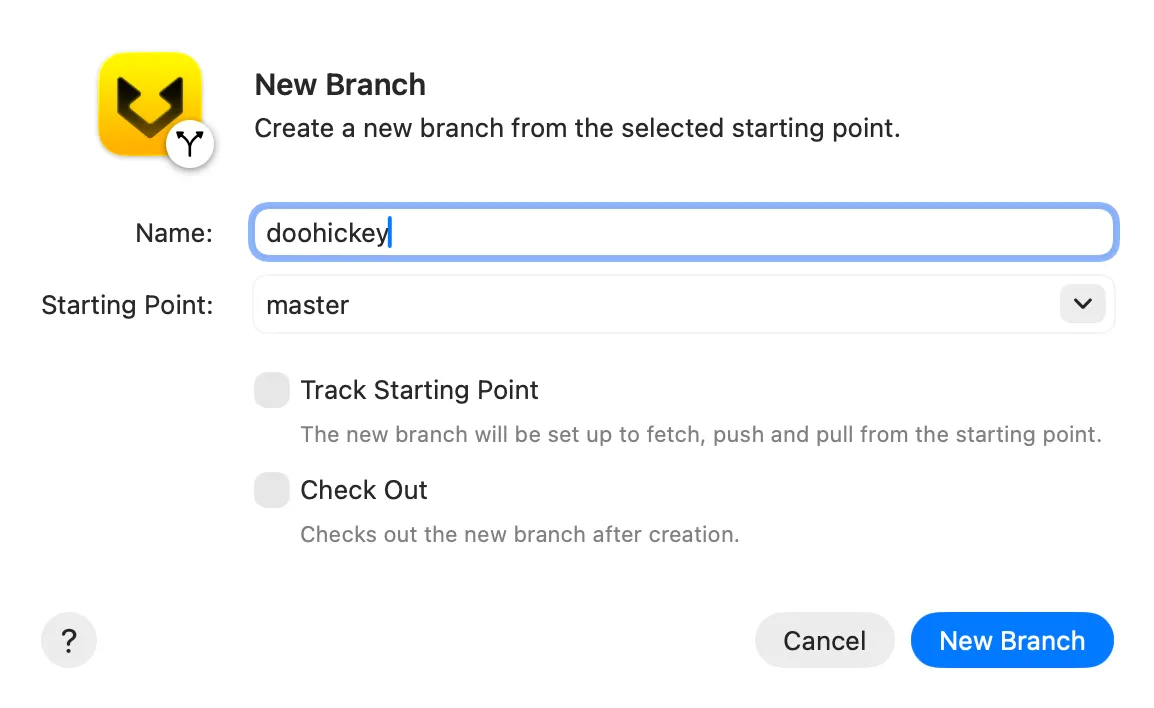
Choose Repository → Create New Branch, press B, or select one revision in the repository sidebar and choose New Branch from … from its context menu. This opens the New Branch dialog .
Then:
- Enter the new branch
Name. - Choose the
Starting Point. This is the revision the new branch initially points to. - Enable
Track Starting Pointif the new branch should use that branch as its upstream for fetch, pull, and push. Tracking is unavailable when the starting point is a commit ID. - Enable
Check Outto switch the worktree to the new branch after creating it. Leave it disabled to create the branch without changing the current checkout. - Click
New Branch.
Creating a branch does not copy commits. It creates another name that initially points to the selected revision.
Copy Branch
Copy a local branch when you want a second branch at the same commit and duplicate the original branch’s configuration and reflog.
Select one local branch in the repository sidebar and choose Copy Branch … from its context menu.
In the Copy Branch dialog , select the source under Branch, enter a new name under Copy To, then click Copy.
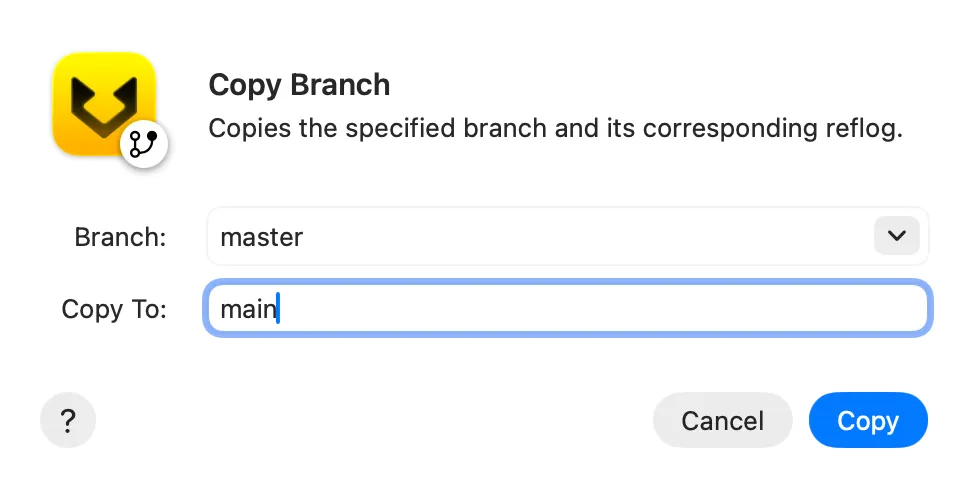
The original branch remains unchanged. The destination name must not already exist.
Move Branch
Move a local branch when you want to rename it without changing the commit it points to.
Select one local branch in the repository sidebar and choose Move Branch … from its context menu.
In the Move Branch dialog , select the branch to rename, enter its new name under Move To, then click Move.
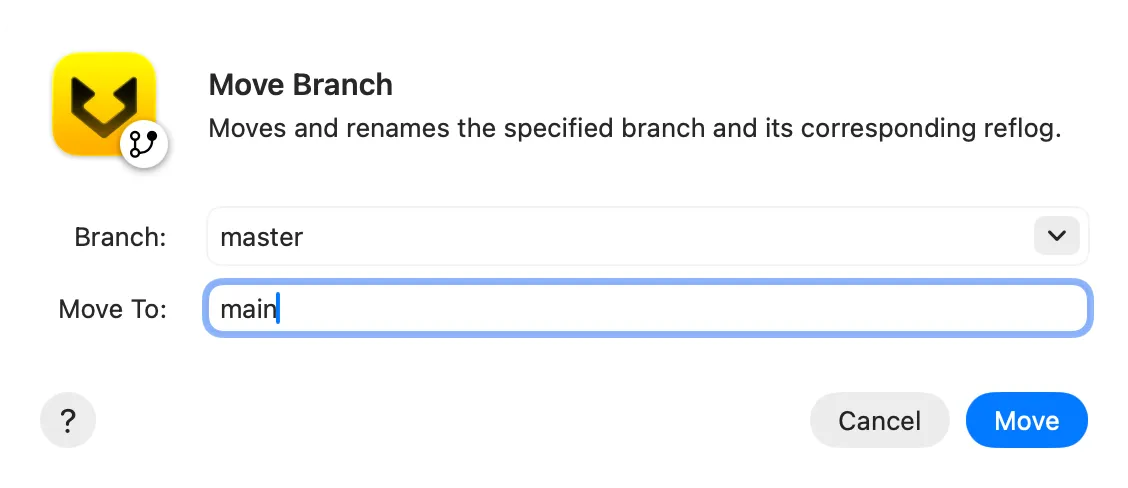
Gitfox renames the branch together with its configuration and reflog. It does not rename a corresponding branch on a remote. Rename the remote branch separately if other repositories must use the new name.
Delete Branches
Delete branches when their work is no longer needed or has been merged.
Select one or more local or remote branches in the repository sidebar and choose Delete … from the context menu.
Gitfox lists the selected branches in the Delete Branches dialog .
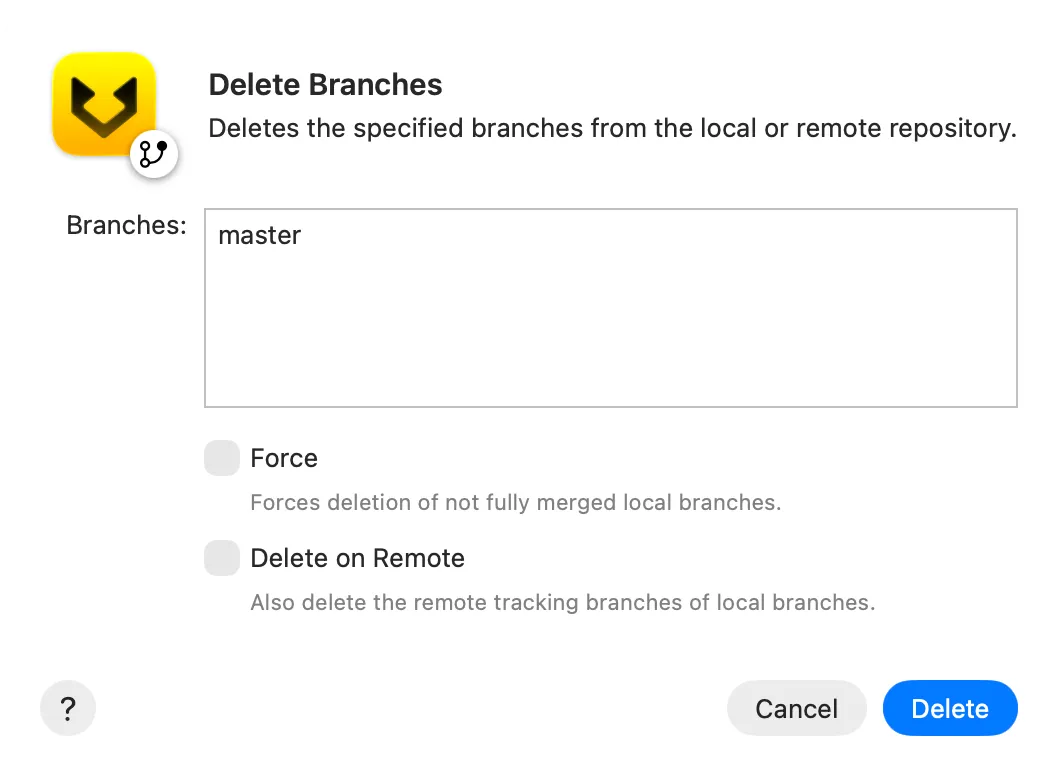
Review the listed branches and these options before clicking Delete:
Forceallows deletion of local branches that are not fully merged.
Commits that are reachable only from those branches can become unavailable, so use this only when you intend to discard that work.Delete on Remotealso deletes each selected local branch’s upstream branch from its remote.
This changes the shared remote repository, not only your local remote-tracking reference.
Deleting a selected remote branch removes that branch from its remote.
Remote deletion may affect collaborators and cannot be undone in Gitfox.
Without Force, Git refuses to delete a local branch that is not fully merged.
Further reading
See the optional Git branch documentation for the underlying Git commands and their complete option reference.