
Clone and Synchronize Repositories
A remote is a named connection from your local repository to another repository. Its name, such as origin, identifies a URL and the authentication Gitfox uses for network operations.
The operations use remotes in different ways:
- Clone creates a new local repository from a remote repository and names that connection
origin. - Add Remote and Edit Remote configure connections for an existing local repository. They do not upload local work.
- Fetch downloads branches, tags, and other references. It updates remote-tracking references without integrating them into your current branch.
- Pull fetches from one remote and integrates the fetched branch into the currently checked-out branch.
- Push sends a local branch or tag to a remote and can change shared history.
HTTPS remotes can use a configured service account or HTTP/S credential. SSH remotes use your normal SSH configuration. See Service Accounts or SSH Remotes to configure authentication.
Clone
Use Clone to create a local copy of a remote repository.
Choose File → Clone Repository…. This opens the Clone dialog .
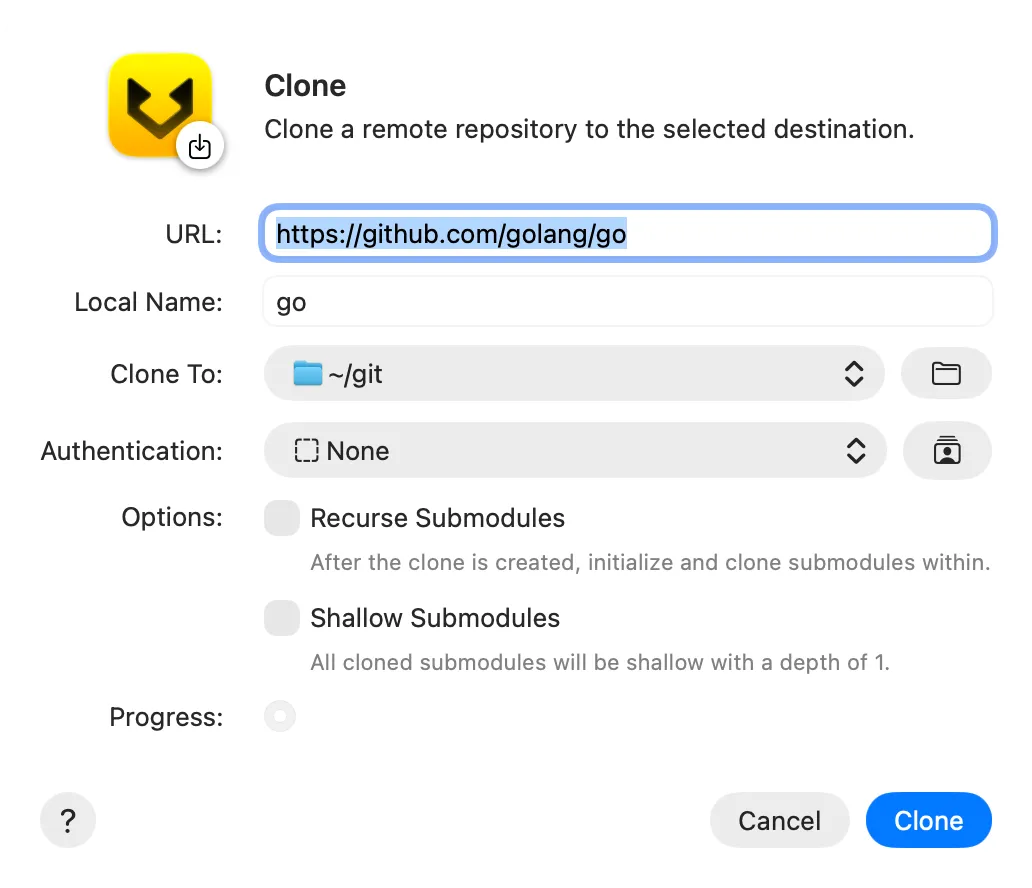
Then:
- Enter the remote repository
URL. - Review the derived
Local Name. Gitfox creates this item inside the selectedClone Tofolder. - Select the account to use for an HTTPS URL. SSH URLs use your SSH keys instead.
- Enable
Recurse Submodulesto initialize and clone the submodules referenced by the repository. - Enable
Shallow Submodulesto limit cloned submodules to a history depth of one. This does not make the main repository shallow. - Click
Clone.
The new repository stores the source URL as a remote named origin.
If an item already exists at the selected destination, Gitfox asks whether to move it to the Trash. This moves the entire existing file or folder before cloning starts. Check Clone To and Local Name carefully. If the clone then fails, the original item remains in the Trash.
Add Remote
Use Add Remote to connect an existing local repository to another repository. A repository can have multiple remotes, for example an origin for your fork and an upstream for the main project.
Choose Repository → Add Remote…. This opens the Add Remote dialog .
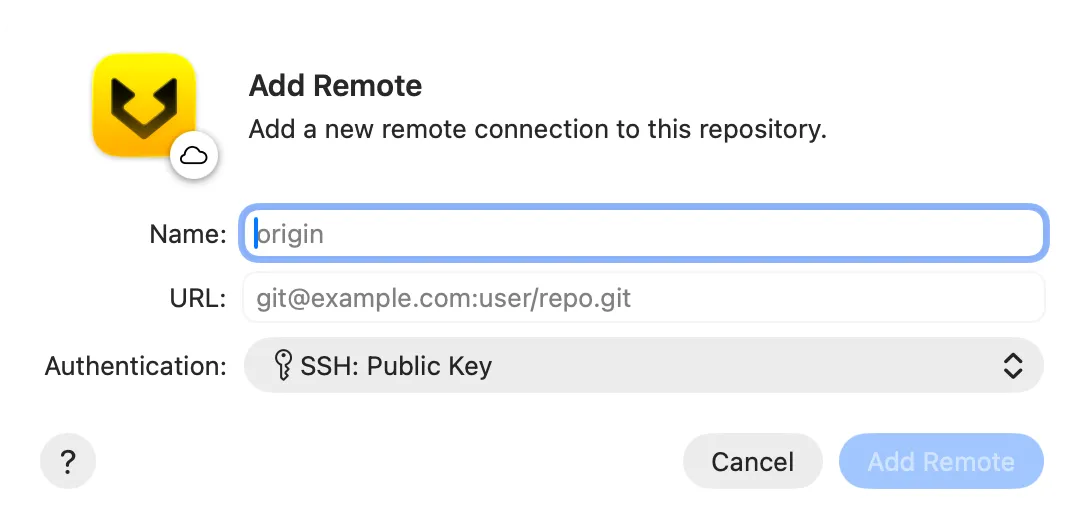
Then:
- Enter a unique
Namefor the connection. - Enter the remote repository
URL. - Select the authentication for an HTTPS URL, or use your SSH configuration for an SSH URL.
- Click
Add Remote.
Gitfox adds the remote and then fetches it. The fetch also uses your saved Fetch All Tags preference. If authentication or fetching fails, the remote remains configured so you can edit it and try again.
Adding a remote does not change the working tree, merge branches, or push local commits.
Edit Remote
Use Edit Remote to rename a connection, change its URL, or select different HTTPS authentication.
Control-click the remote in the repository sidebar and choose Edit “name”…. This opens the Edit Remote dialog .
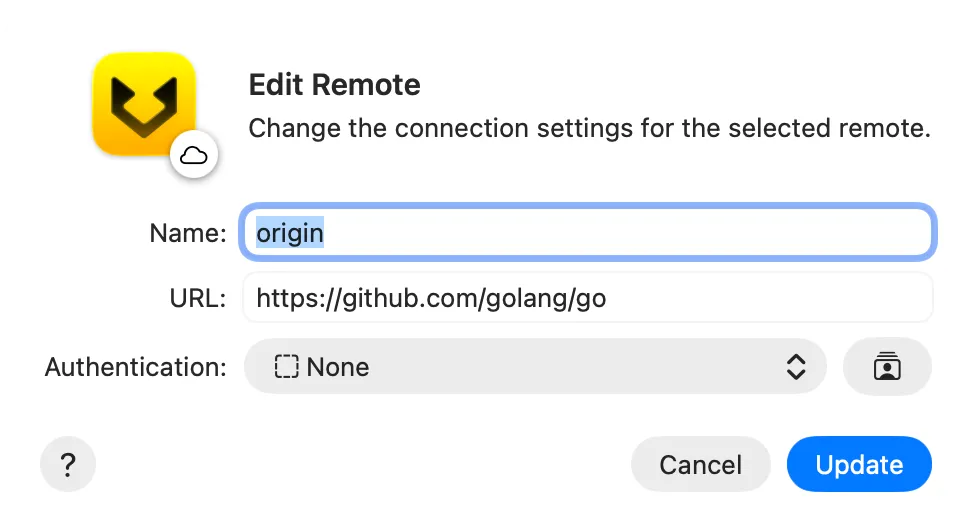
Change the settings, then click Update.
Editing a remote does not fetch from or validate the new URL. Fetch after editing to confirm that the URL and authentication work. Gitfox applies the URL, authentication, and name changes in sequence, so an error can leave only some changes applied. Reopen Edit Remote and verify every field after an error.
Changing an HTTPS remote to SSH clears its Gitfox service-account association because SSH uses your system SSH configuration.
Fetch
Use Fetch to inspect remote changes without integrating them into your current local branch.
Choose Repository → Fetch…. This opens the Fetch dialog .
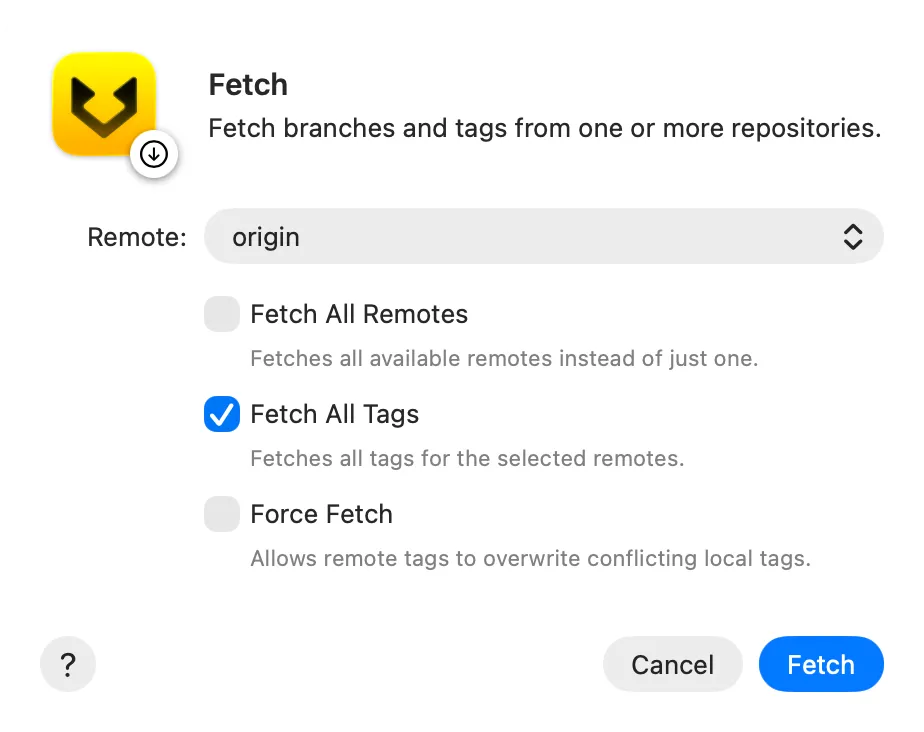
Select a remote, then review these options:
Fetch All Remotesfetches each eligible remote instead of only the selected one. Remotes configured to skip fetch-all are excluded.Fetch All Tagsdownloads all tags from the selected remotes, including tags that are not reachable from fetched branches.Force Fetchpermits fetched tags to replace conflicting local tags. This can move a local tag away from the commit it previously identified.
Every fetch in Gitfox also prunes remote-tracking references that were deleted from the remote. Fetch does not normally change the working tree or current local branch, but forced tag updates and pruning do change local references.
When fetching all remotes, Gitfox continues with later remotes if one fails. Cancelling stops the remaining fetches.
Pull
Use Pull when you want to fetch a remote branch and immediately integrate it into the currently checked-out branch, also called HEAD.
Choose Repository → Pull…. This opens the Pull dialog .
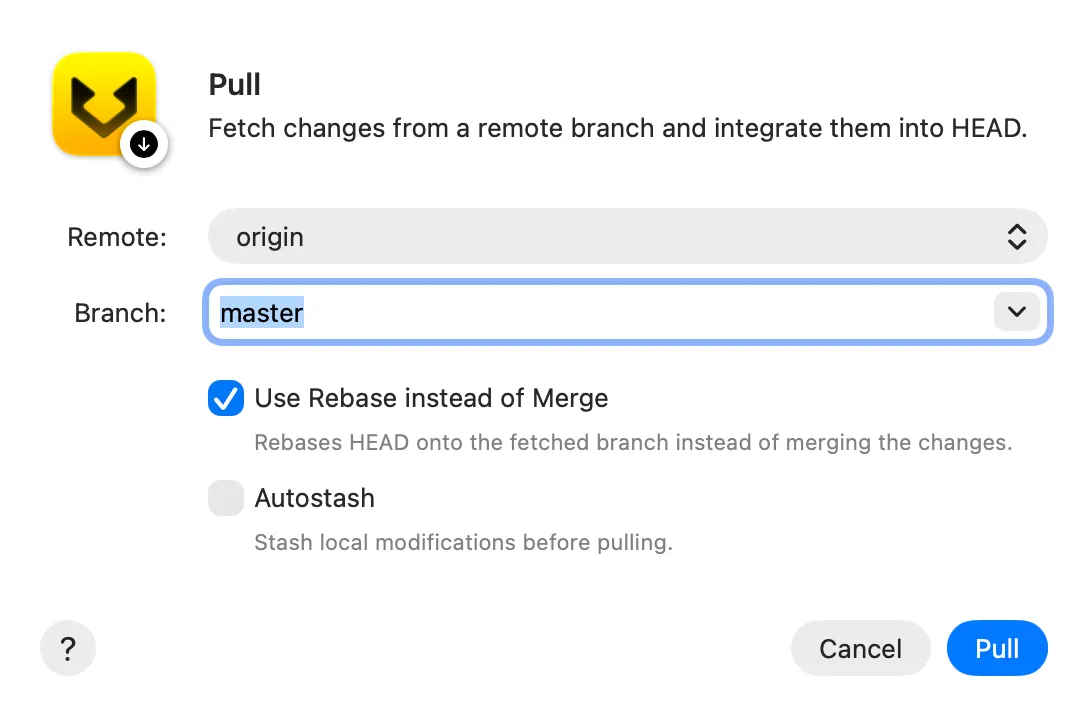
Select the Remote and Branch, then review these options:
Use Rebase instead of Mergereplays your local commits on top of the fetched branch. Rebase changes those commits’ IDs. Avoid rebasing commits that other people already use unless you intend to rewrite that shared history.- When rebase is disabled, Gitfox lets your Git configuration determine the pull strategy. Git commonly merges when no other strategy is configured. A merge can create a merge commit.
Autostashtemporarily stashes uncommitted changes before pulling and reapplies them afterward. The pull or the final reapplication can produce conflicts.
The Branch field is editable. If you enter a value instead of selecting one, verify the remote branch or refspec before pulling. Pull can stop for conflicts; resolve them before continuing your work.
Push
Use Push to send a local branch or tag to a remote. A successful push changes the remote repository and can affect collaborators.
Choose Repository → Push…. This opens the Push dialog .
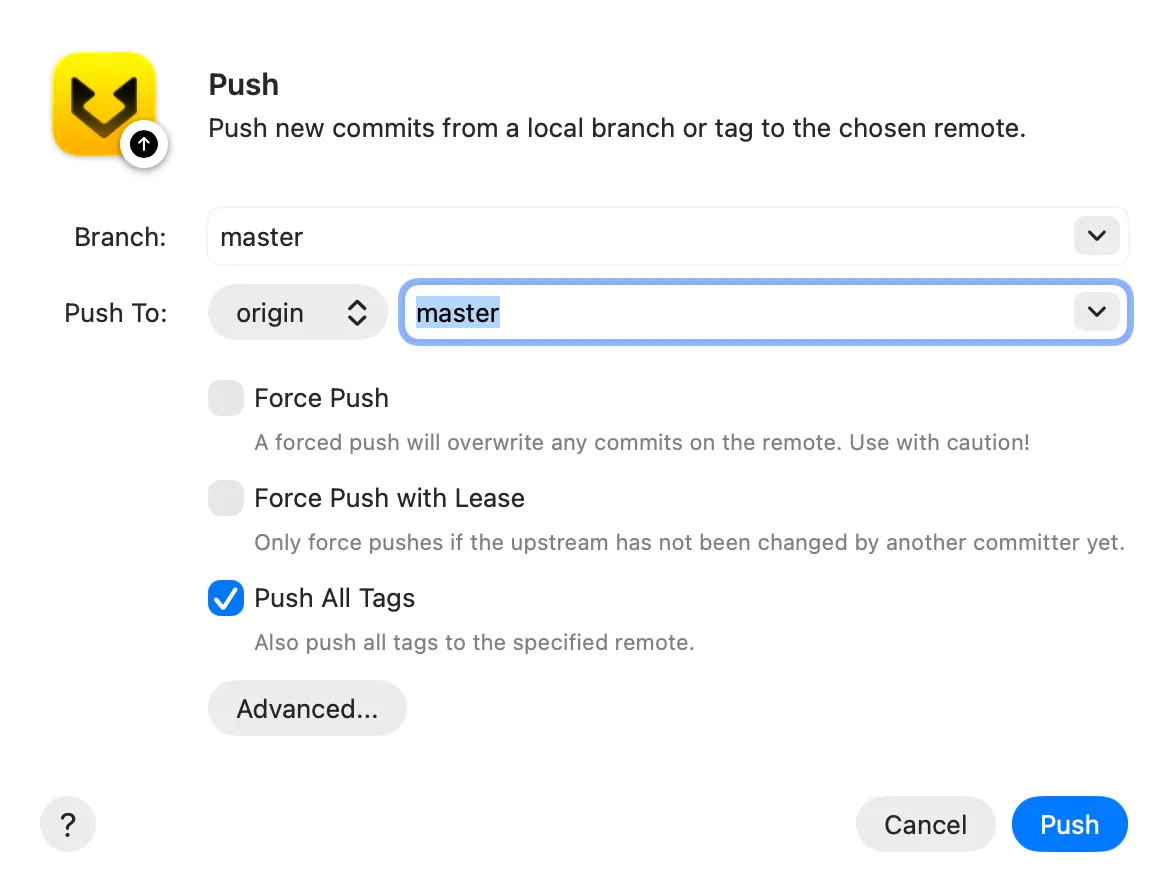
Then:
- Select the local branch or tag under
Branch. - Select the remote and destination under
Push To. - Review the options below.
- Click
Push.
The source and destination fields are editable. Verify both before pushing. If the local branch has no upstream, Gitfox sets the selected destination as its upstream after a successful push.
Force Pushallows a non-fast-forward update. Remote commits can become unreachable from the overwritten branch. Use it only when you deliberately want to replace remote history.Force Push with Leaserefuses the force push if the expected upstream has changed. Fetch first so your remote-tracking information is current. Do not enable both force options when you require lease protection.Push All Tagspushes every local tag, not only tags related to the selected branch. With force enabled, conflicting remote tags can also be replaced.Check Submodule Commitsaborts if the pushed repository references submodule commits that have not been pushed. Disabling it can leave collaborators unable to retrieve those submodule commits.Create Pull Requestopens the supported hosting service’s pull-request page after a successful push. It does not create the pull request automatically.
Prefer a normal push whenever possible. Before any force push, fetch the remote, inspect the commits that will be replaced, and coordinate with other contributors.
Further reading
For the underlying commands and their complete option references, see the optional Git documentation for clone, remote, fetch, pull, and push.