
View Modes
Gitfox can show changed files as a flat list, a directory tree, or groups of files from the same directory. The view mode changes only how files are arranged; it does not change the repository or the contents of a diff.
Choose a mode from the View menu. Gitfox uses the selected mode for file lists in the Worktree, commits, comparisons, and stashes, and remembers the selection.
List View
View → List View shows every file in one flat, alphabetically sorted list . Each row shows the file’s full repository-relative path.
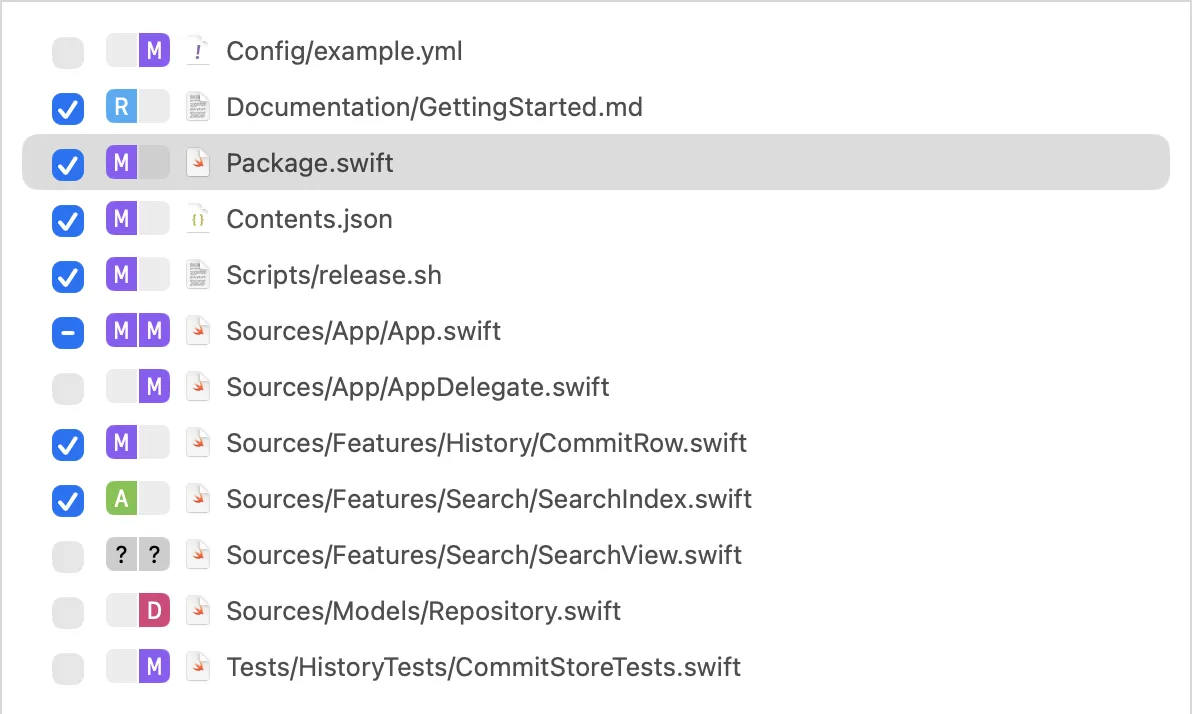
Use List View when you have a short set of changed files, want to scan exact paths without expanding anything, or prefer the most compact arrangement.
Tree View
View → Tree View arranges files in the repository’s directory hierarchy . Expand or collapse directories to show only the parts of the repository you need. Gitfox combines a chain of directories when each directory contains only one subdirectory, while files at the repository root remain at the top level.
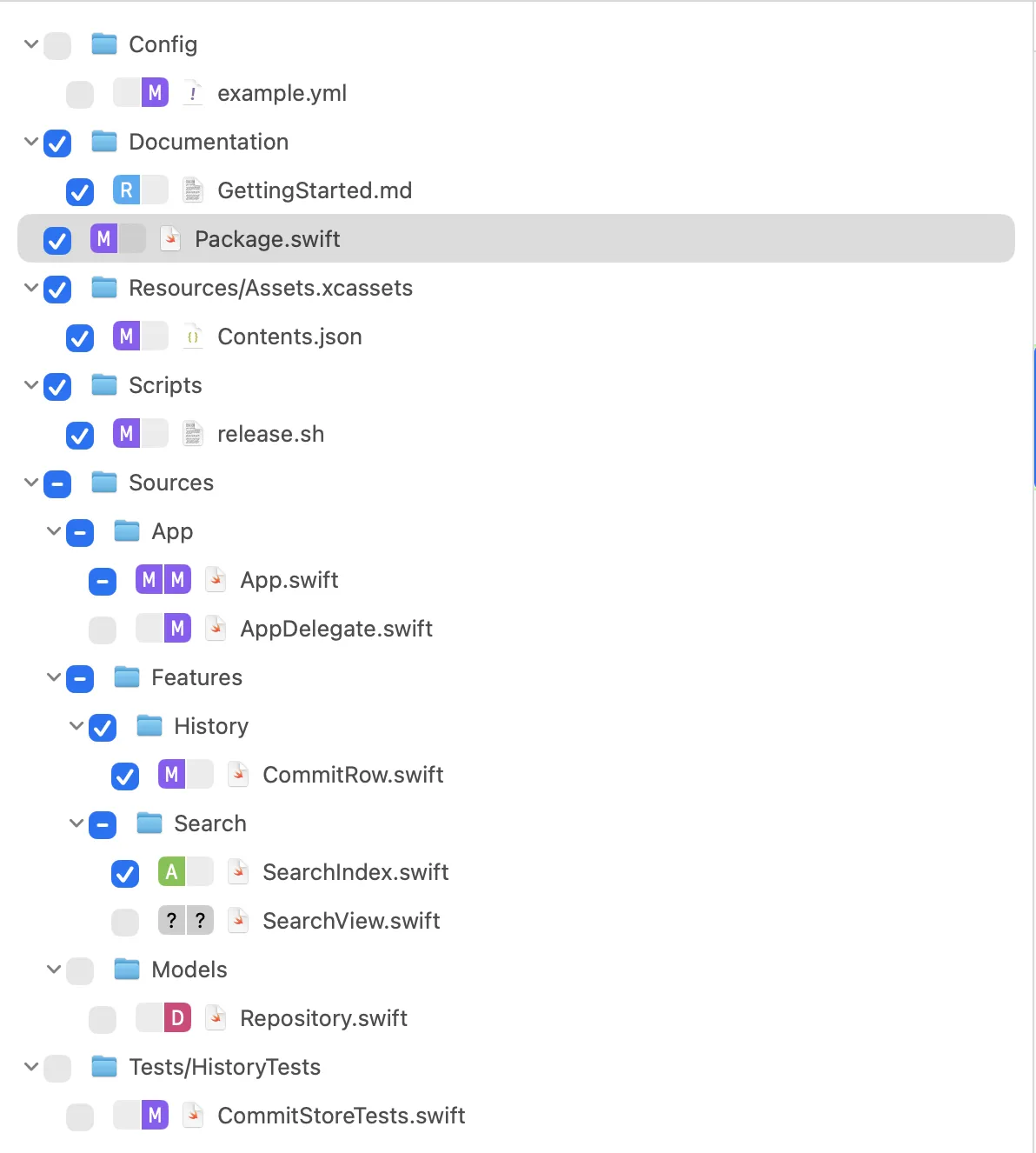
Use Tree View when changes span several parts of a repository and you want to browse them in the same hierarchy as the project on disk.
Group View
View → Group View places files with the same parent directory in one collapsible group . Unlike Tree View, Group View does not nest directories inside one another. A file in Sources/App/AppDelegate.swift, for example, appears in the Sources/App group.
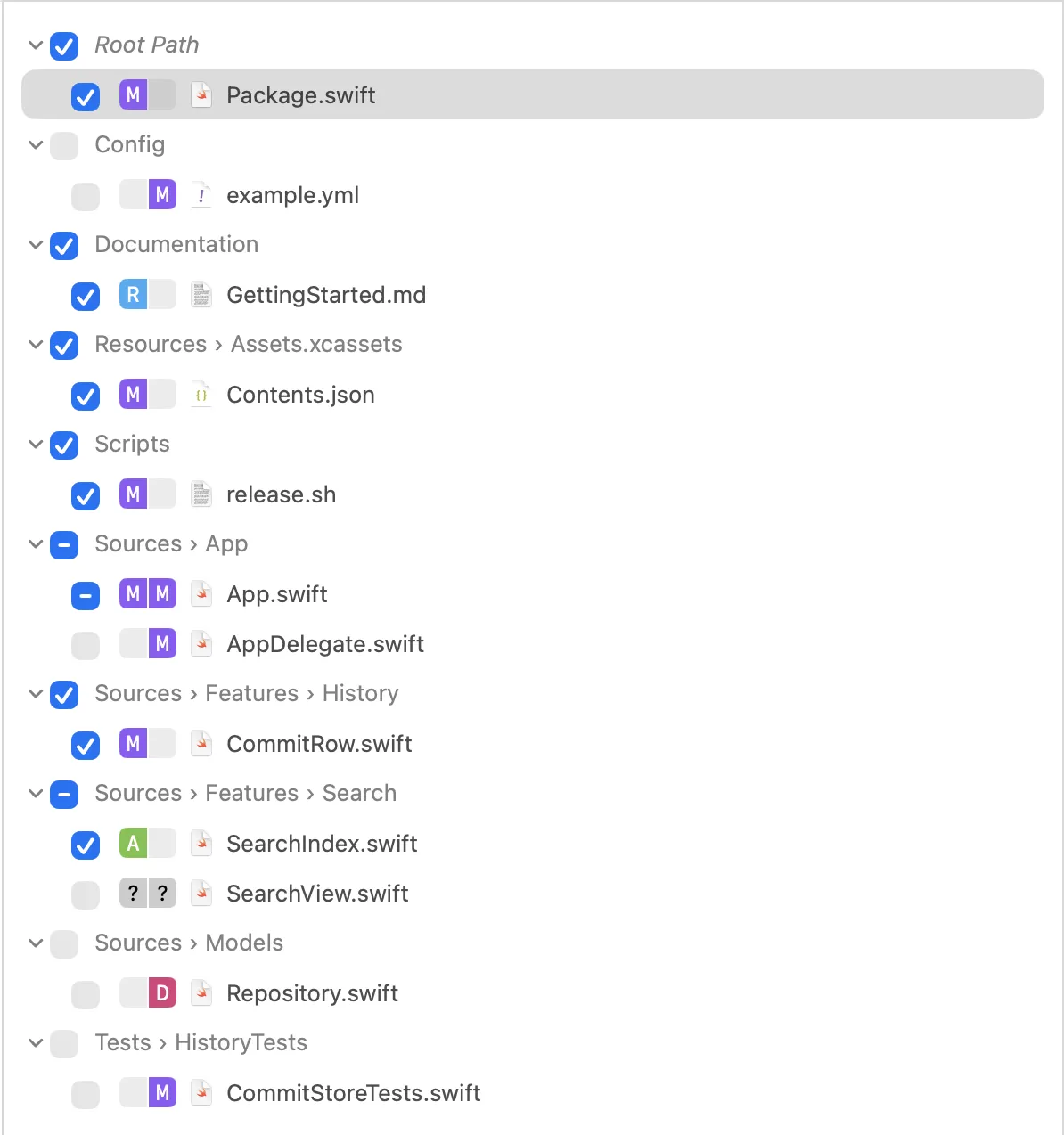
Use Group View when you want directory context but do not want to navigate a nested tree. It is also useful for staging or unstaging every changed file in a directory together.
Separate staged and unstaged changes
In the Worktree, enable View → Separate Staged / Unstaged to add Unstaged Changes and Staged Changes sections . This option works with List, Tree, and Group View.
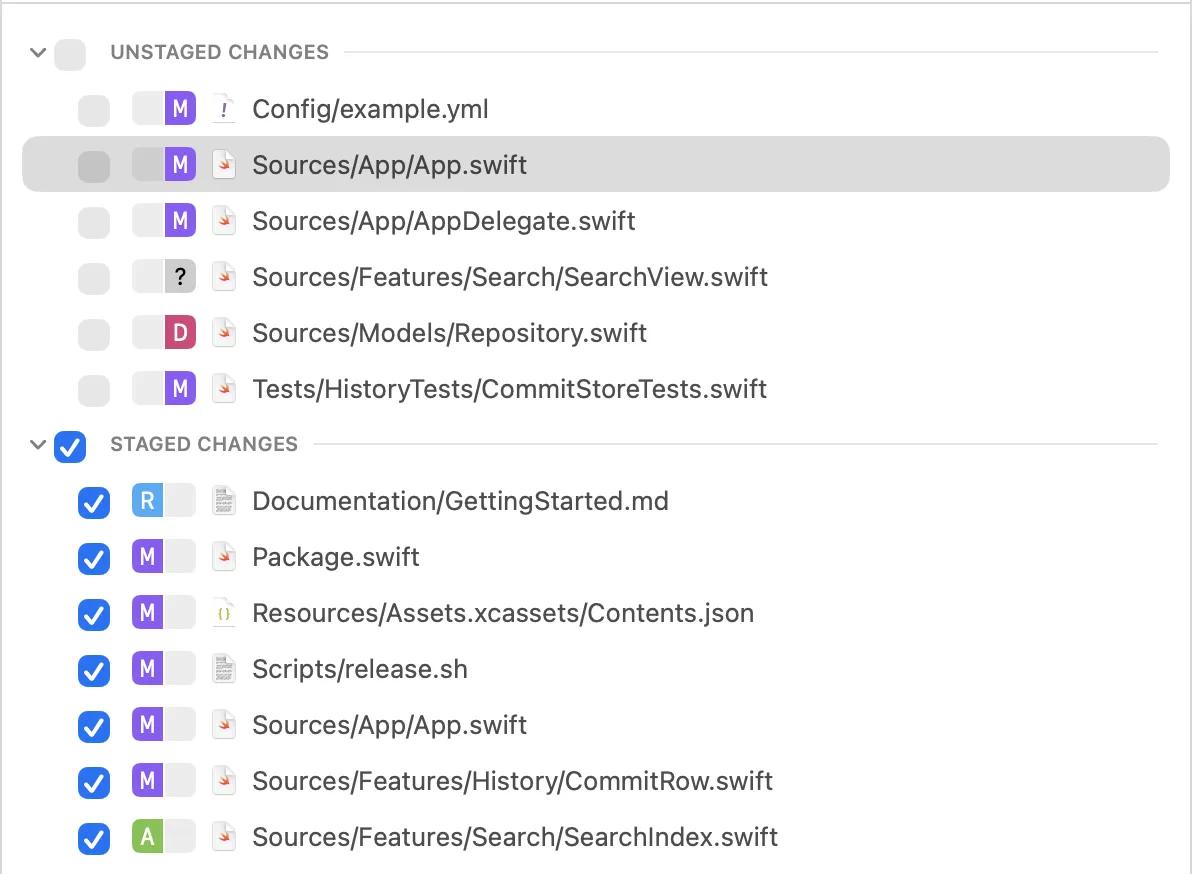
A partially staged file appears in both sections: the unstaged section represents the changes still in the worktree, and the staged section represents the changes already in the index. Disable the option to show each changed file once instead.
Use separate sections when preparing a commit and you want to distinguish what will be committed from what remains unstaged.