
Work with Multiple Worktrees
A Git worktree is another working folder linked to the same repository. Each worktree has its own checked-out files, staging area, and current revision while sharing branches, commits, tags, and other repository data.
Use another worktree when you want to work on two branches side by side, run a long build without disturbing your current files, or inspect another revision without stashing your current changes. Git normally prevents the same branch from being checked out in more than one worktree at a time.
Add Worktree
Choose Repository → Add Worktree…, or Control-click the Worktrees group in the repository sidebar and choose Add Worktree…. This opens the Add Worktree dialog .
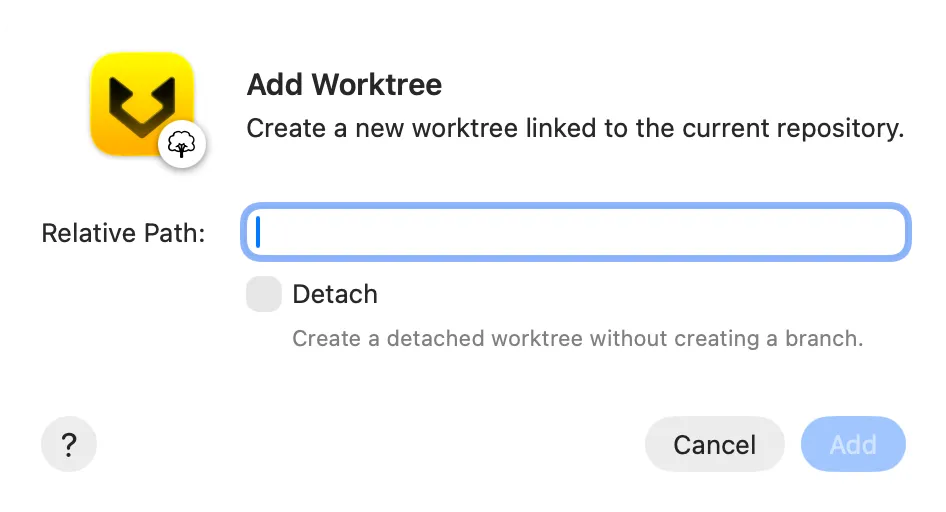
Then:
- Enter a
Relative Pathfor the new working folder. The path is relative to the open repository, so../project-featurecreates a sibling folder beside it. Use a new path that does not contain files you need to keep. - Leave
Detachdisabled to use a branch named after the last component of the path, such asproject-feature. Git checks out that branch if it already exists and is available; otherwise, it creates the branch from the currentHEAD. - Enable
Detachwhen you only need a temporary checkout at the current commit and do not want to create a branch. Create or check out a branch before committing work that you want to keep under a branch name. - Click
Add.
Gitfox adds the linked worktree under Worktrees in the repository sidebar. Open it from the worktree’s context menu to work with it in Gitfox.
If Git cannot create the worktree, check that the destination path is available and that the branch name derived from that path is not already checked out in another worktree.
Remove Worktrees
Removing a linked worktree deletes its working folder and unregisters it from the repository. It does not move the folder to the Trash, and it does not delete the branch that was checked out there.
Before removal:
- Open each worktree and review its uncommitted and untracked files.
- Commit or stash changes you want to keep, or copy needed files somewhere outside the worktree.
- Push commits if they must also be available from a remote repository.
- Close editors, terminals, and Gitfox windows that use the worktree.
In the main repository window, select one or more linked worktrees under Worktrees, Control-click the selection, and choose Remove Worktree “name” or Remove Worktrees…. Review every path in the Remove Worktrees dialog before continuing.
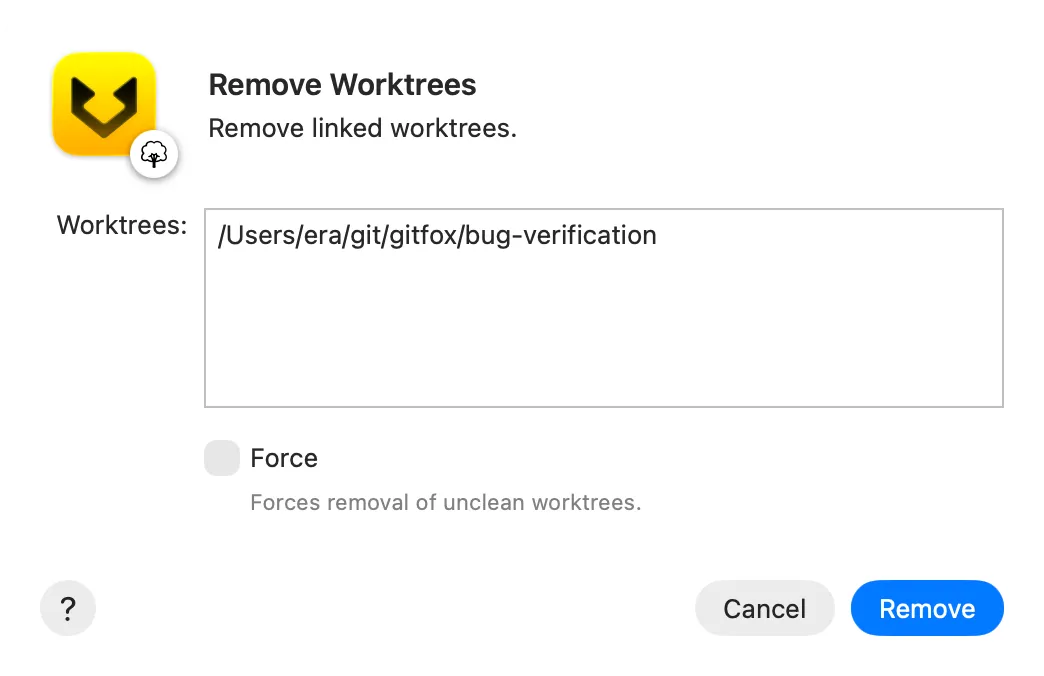
Leave Force disabled for the safe default. Git then refuses to remove a worktree with uncommitted changes or untracked files. Enable Force only when you intend to permanently discard those files. Click Remove to delete the listed working folders.
The removed worktree’s branch remains in the repository. Delete the branch separately only after confirming that its commits are merged or no longer needed.
Further reading
See the optional Git worktree documentation for the underlying Git commands and their complete option reference.