
Integrating Changes
Merge, rebase, and cherry-pick all bring changes into the current branch, but they create different histories:
- Merge combines another branch with the current branch. It preserves the existing commits and can create a merge commit that records where the histories joined. Use it when you want to preserve branch history, especially for shared work.
- Rebase moves the current branch’s commits onto a new base. It creates replacement commits with new IDs and produces a linear history. Use it to update local, unshared work before you merge or publish it.
- Cherry-pick copies the changes from selected commits onto the current branch. It creates new commits without integrating the source branch. Use it when you need specific changes rather than the branch’s complete history.
Before starting, check out the branch that should receive the changes. If the operation stops because Git cannot combine changes automatically, follow Resolving Conflicts and then continue or abort the operation in Gitfox.
Merge
Use Merge when the current branch should include another branch’s complete history without replacing its existing commits.
Choose Worktree → Merge Into HEAD. This opens the Merge dialog .
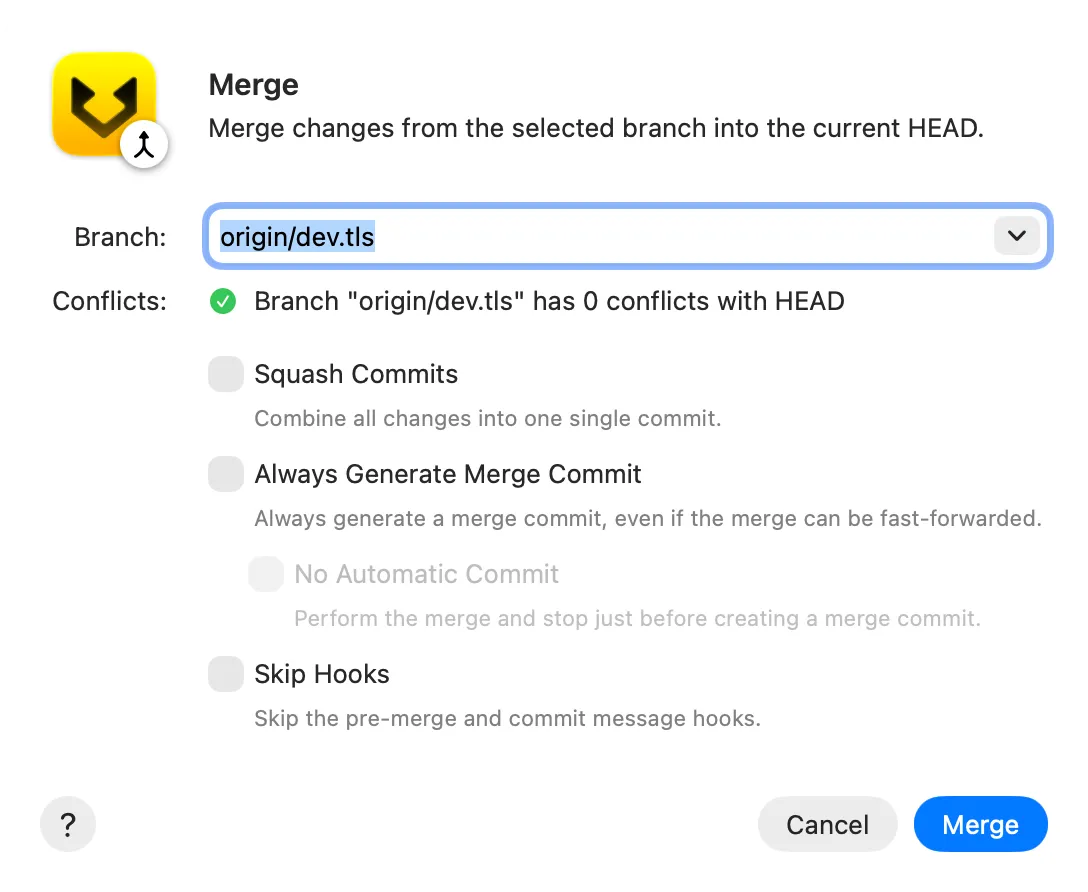
Then:
- Select the branch to merge into the currently checked-out branch.
- Review the conflict estimate and the merge options.
- Click
Merge.
If the selected branch is directly ahead of the current branch, Git can normally fast-forward the current branch without creating a merge commit. If both branches contain different commits, Git normally creates a merge commit that has both histories as parents.
The dialog provides these options:
Squash Commitsapplies the combined changes without preserving the selected branch’s individual commits in the current branch. Commit the resulting changes as one new commit.Always Generate Merge Commitcreates a merge commit even when a fast-forward is possible. It cannot be combined withSquash Commits.No Automatic Commitstops after preparing the merge so you can review the result before committing. It is available whenAlways Generate Merge Commitis enabled.Skip Hooksskips the pre-merge and commit-message hooks for this merge.
Choose a normal merge when the relationship between the branches should remain visible. Choose a squash merge when you want the combined result but not the source branch’s individual commit history.
Rebase
Use Rebase when you want a linear history and the current branch’s commits have not been shared with other people.
Check out the branch whose commits you want to move, then choose Worktree → Rebase HEAD. This opens the Rebase dialog .
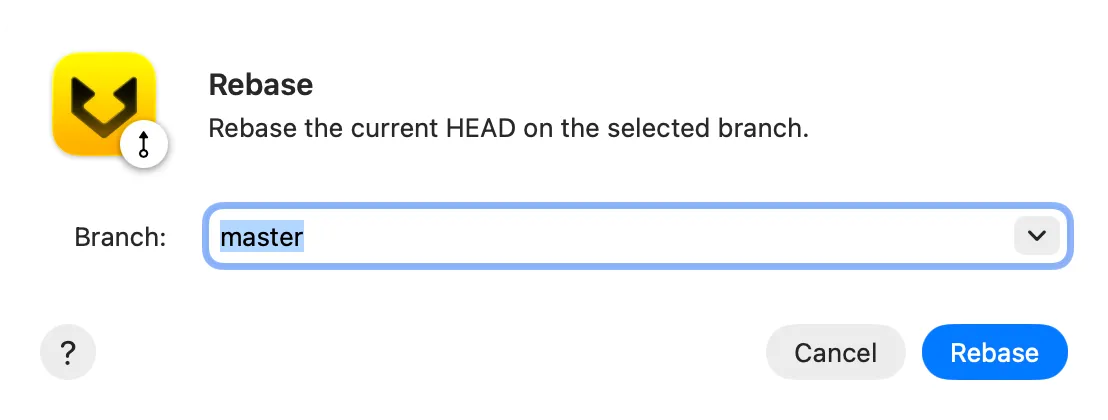
Select the branch that should become the new base, then click Rebase.
Git finds the current branch’s commits that are not in the selected branch, resets the current branch to the selected base, and replays those commits in order. Each replayed commit receives a new ID even when its file changes remain the same.
Do not rebase commits that collaborators already use unless you have coordinated the history rewrite. Publishing the rebased branch may require a force push and can replace the shared branch history.
Cherry-Pick
Use Cherry-Pick when you need one or more specific commits without merging or rebasing their source branch.
Select the commits in the history. Open the selection’s context menu and choose Cherry-Pick Commit … or Cherry-Pick n Commits…. This opens the Cherry-Pick dialog .
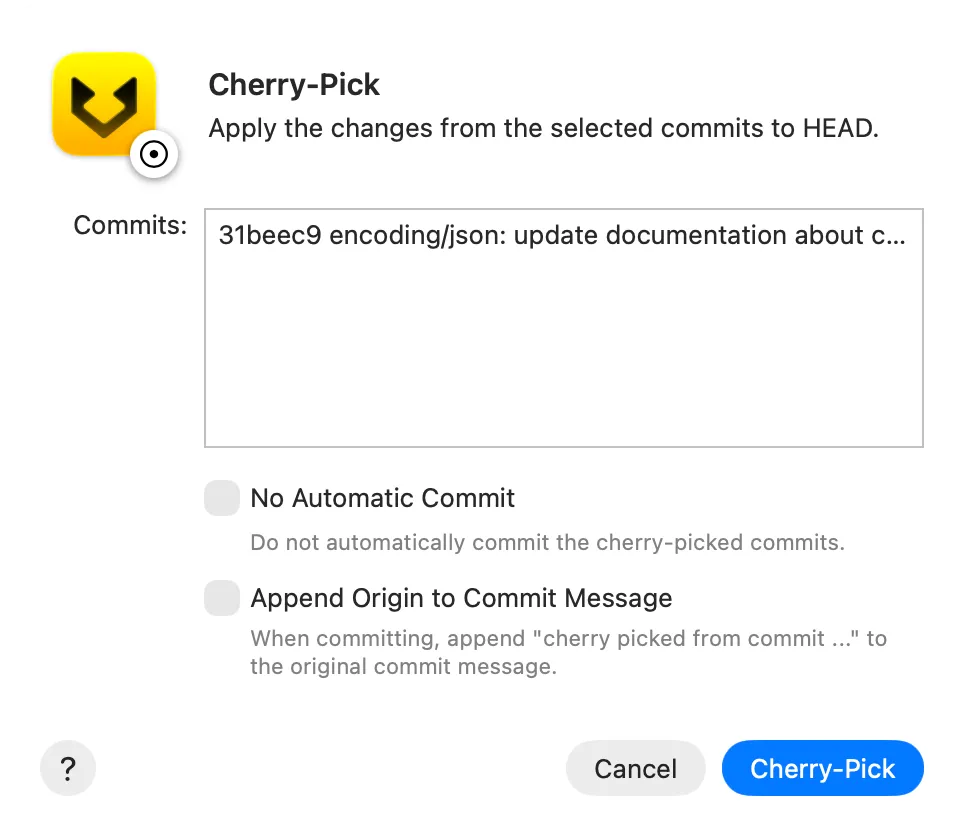
Review the listed commits, choose the options you need, then click Cherry-Pick.
Git applies each selected commit’s changes to the current branch and normally creates a new commit for each one. The source commits and source branch remain unchanged. The new commits have different IDs because they have a different parent history.
- Enable
No Automatic Committo apply the combined changes without creating commits. Review or edit the changes, then commit them yourself. - Enable
Append Origin to Commit Messageto record the original commit ID in each new commit message. This option is unavailable withNo Automatic Commit.
When you cherry-pick a merge commit, Gitfox uses its first parent as the mainline that determines which changes to apply.
Further reading
For complete command behavior and options, see the optional Git documentation for merge, rebase, and cherry-pick.