
Undoing Changes
Gitfox offers two ways to undo committed work. Choose the one that matches what you need to preserve:
- Revert applies the inverse of selected commits. It normally adds new commits and keeps the existing history intact. Use it for commits that you have already pushed or shared.
- Reset HEAD moves the current branch to another revision. It rewrites the branch’s visible history and can also discard file changes. Use it for local history that you have not shared.
If you are unsure, use Revert. It records the undo operation without removing existing commits from the branch.
Revert
Use Revert when you want to undo the changes introduced by one or more commits while preserving the commits themselves.
- Select the commits in the history.
- Open the selection’s context menu and choose
Revert Commit …orRevert n Commits…. - Review the commits listed in the
Revertdialog . - Leave
No Automatic Commitdisabled to create commits that reverse the selected changes, then clickRevert.
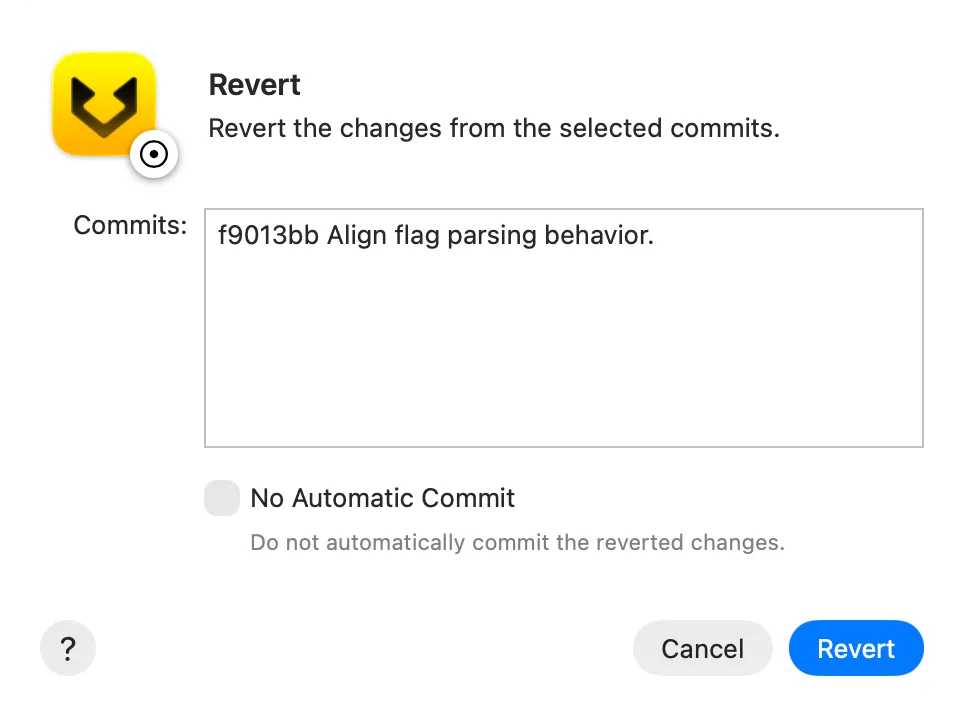
Enable No Automatic Commit when you want Gitfox to apply the inverse changes without committing them. You can then review or edit the changes before creating a commit yourself.
Reverting does not delete the original commits or erase their changes from earlier history. It adds new work that cancels those changes in the current branch. A revert can still conflict when later commits changed the same lines. Resolve the conflicts and continue or abort the operation from Gitfox’s repository state controls.
Reset HEAD
Use Reset HEAD when you want the current branch to point to another revision and the commits after that revision should no longer be part of the branch’s visible history.
- Select the target commit in the history.
- Open its context menu and choose
Reset HEAD to "hash"…. - Confirm the target under
To Revisionin theReset HEADdialog . - Decide whether to enable
Discard Changes, then clickReset.
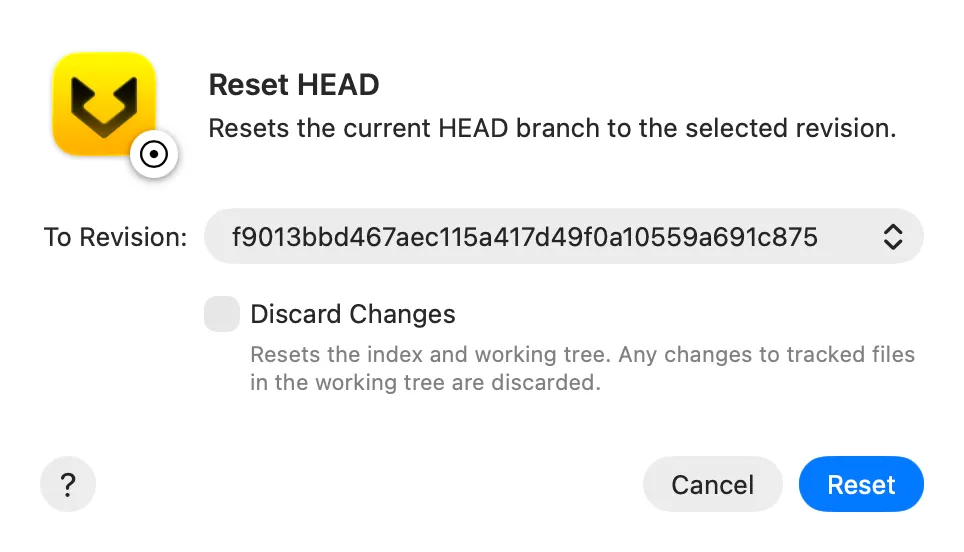
With Discard Changes disabled, Gitfox moves the branch and resets the index, but leaves the working-tree files in place. Differences between the selected revision and those files become unstaged changes that you can review and commit again.
With Discard Changes enabled, Gitfox performs a hard reset. It makes the index and working tree match the selected revision. Changes to tracked files are permanently discarded, and untracked files or directories can also be removed when they obstruct files restored by the reset. Create a stash, snapshot, or backup first if you might need those changes.
Reset changes branch history. Commits after the selected revision can become unreachable when no other branch or tag refers to them. Git may retain them temporarily in the reflog, but that is not a backup and recovery is not guaranteed.
Do not reset commits that other people already use unless you have coordinated the history rewrite. A remote branch still contains pushed commits until it is force-updated, and rewriting it can disrupt collaborators’ work.
Further reading
See the optional Git documentation for the complete command behavior and options: