
Stashes and Snapshots
Stashes and snapshots both save uncommitted changes outside your branch history. A stash also removes the saved changes from the working tree, while a snapshot leaves your files exactly as they are.
Use a stash when you need a clean working tree. Use a snapshot when you want a recoverable checkpoint and plan to keep working on the same changes.
Create a stash
Choose Worktree → Push Stash… from the main menu or press S. That will open the Push Stash dialog .
Add an optional message, then choose any options you need:
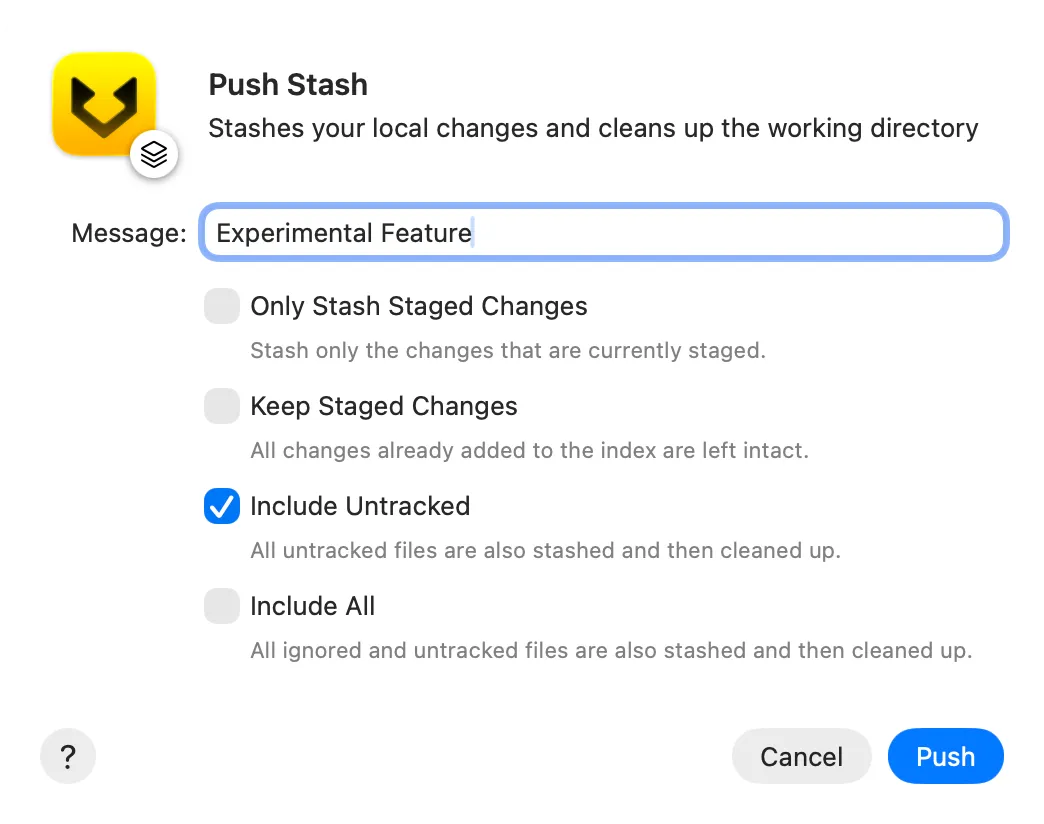
Only Stash Staged Changessaves only changes already in the index.Keep Staged Changesleaves staged changes in the working tree.Include Untrackedincludes untracked files.Include Allincludes ignored and untracked files.
Click Push. Gitfox saves the stash under Stashes in the repository sidebar and removes the included changes from the working tree.
Apply, pop, or drop a stash
Select Stashes in the repository sidebar to inspect saved stashes.
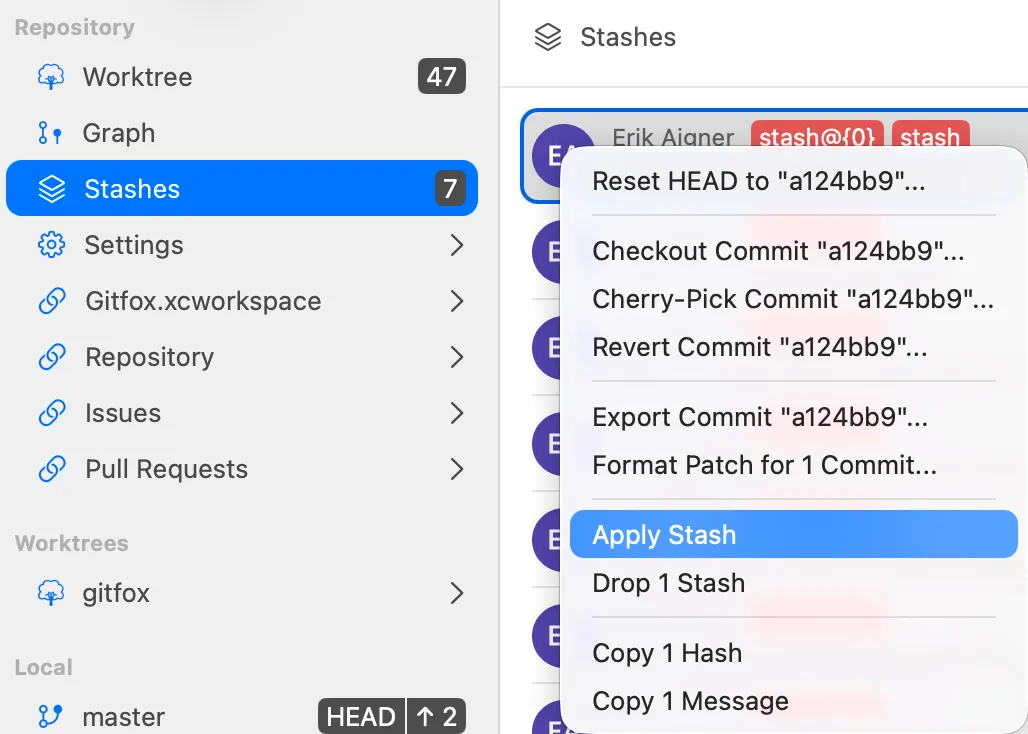
To restore a stash, select it and choose Apply Stash from its context menu .
You can also choose Worktree → Apply Stash… from the main menu or press ⌥S, then select a stash in the dialog .
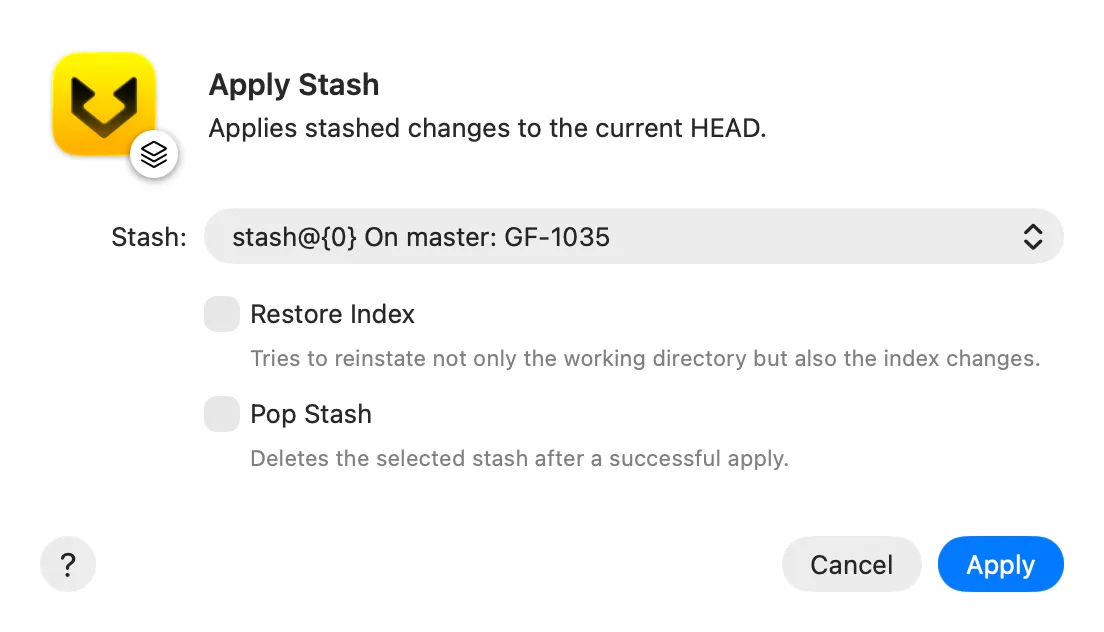
- Enable
Restore Indexto also restore which changes were staged. - Enable
Pop Stashto remove the stash after it is applied successfully. Leave it disabled to keep the stash for reuse.
To delete saved stashes without applying them, select them under Stashes, open the context menu, and choose Drop 1 Stash or Drop n Stashes.
Stash selected files
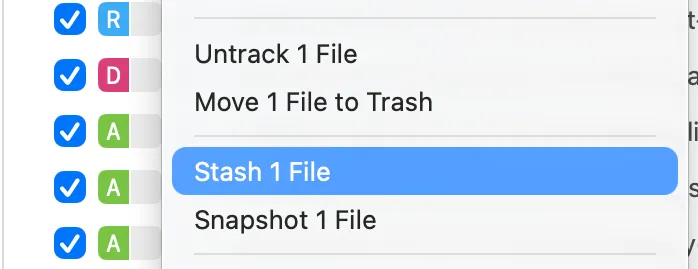
You do not have to stash every local change. In the Worktree file list, select one or more files, open the context menu, and choose Stash 1 File or Stash n Files .
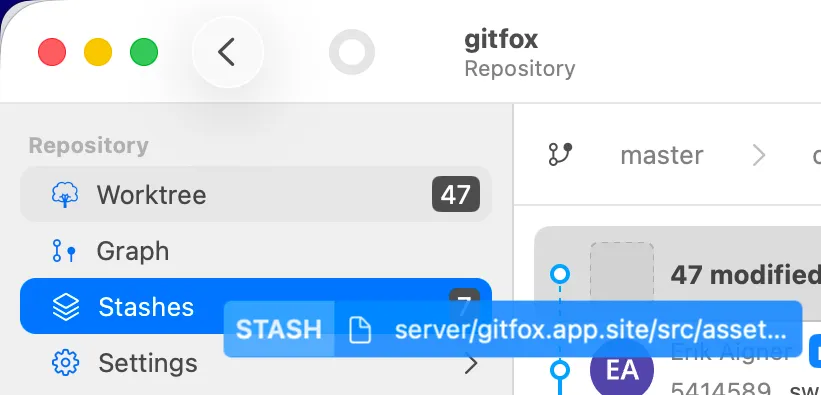
You can also drag the selected files from the file list onto Stashes in the repository sidebar .
Gitfox immediately stashes those files without opening a dialog. Other working-tree changes remain untouched.
Apply selected files from a stash
Open a stash from Stashes, select the files you want, open the context menu, and choose Apply 1 File from Stash or Apply n Files from Stash .
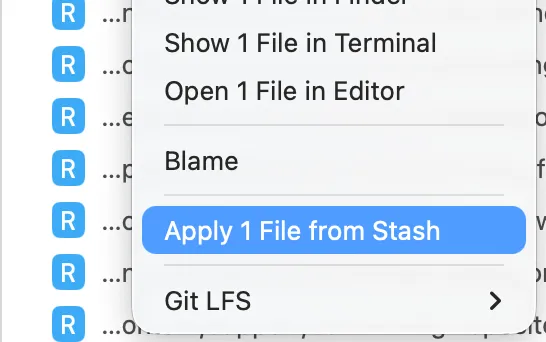
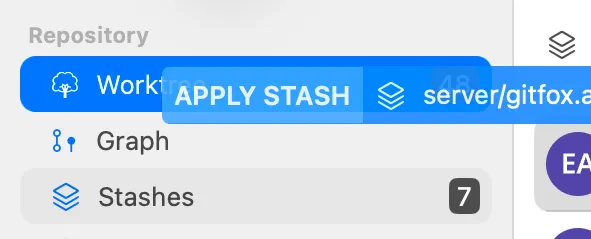
You can also drag those files onto Worktree in the repository sidebar . Gitfox restores only the selected files and leaves the saved stash unchanged.
Create a snapshot
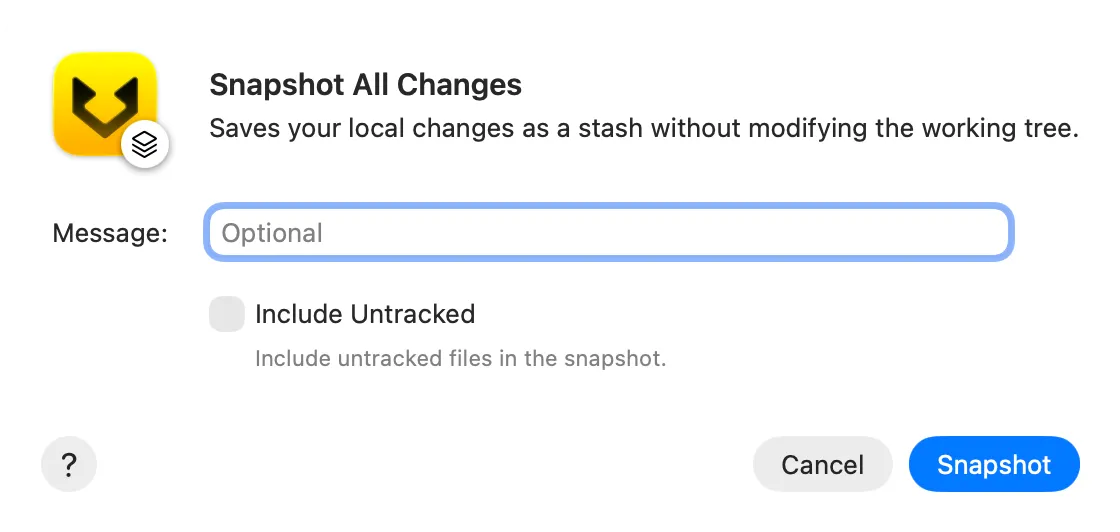
A snapshot records the current state in a stash without cleaning the working tree. The files remain in place with their staged and unstaged state preserved.
To snapshot every tracked change, choose Worktree → Snapshot All Changes… in the main menu or press ⌃S.
Enter an optional message, enable Include Untracked if needed, then click Snapshot .
To snapshot only some files, select them in the Worktree file list, open the context menu, and choose Snapshot 1 File or Snapshot n Files.
Snapshots appear under Stashes and can be applied, popped, or dropped like any other stash.
Stash changes before checking out a branch
When you check out a branch while the repository has local changes, Gitfox offers four choices if the checkout would change the working tree :
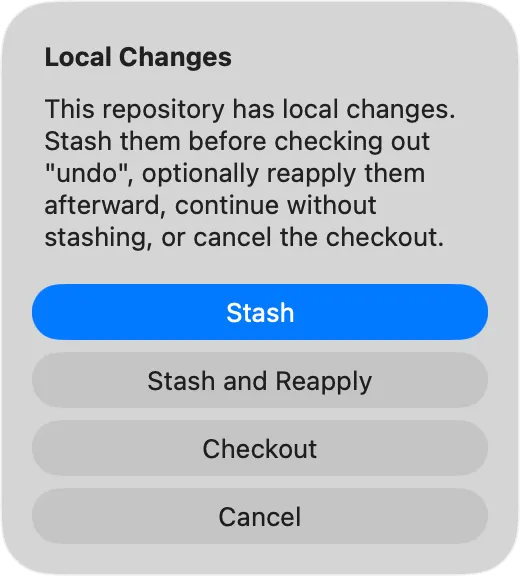
Stashsaves tracked and untracked changes, checks out the branch, and keeps the new stash for later.Stash and Reapplysaves the changes, checks out the branch, then reapplies that stash and restores its index state. If reapplying fails or conflicts, Git keeps the stash.Checkoutcontinues without stashing. Git carries compatible changes to the target branch or reports that checkout cannot proceed.Cancelleaves the repository unchanged.
Gitfox checks out immediately without showing this prompt when the working tree is clean or the target revision has the same tree as HEAD.